
Preparing Your HVAC Systems for Warmer Weather
Before warmer weather arrives, switch every thermostat and mini-split unit from heating to cooling mode. Select Cool or the snowflake icon, set the desired temperature, and confirm that each indoor mini-split unit uses the same operating mode. A setting between 72°F and 78°F with the fan on Auto can provide consistent comfort and help prevent system errors.
- Ecobee: Tap the mode icon and select Cool
- Mini-split: Press Mode until the snowflake or COOL appears
- Honeywell 8000: Select System → Cool → Done
- Google Nest: Open Temperature Mode and choose Cool
- Important: Set all connected mini-split units to cooling mode
As temperatures rise, it’s time to switch your heating systems over to cooling mode. To help you make the transition smoothly, we’ve put together a simple guide for setting up your thermostats and mini-split systems correctly.
Ecobee Thermostat – Changing to Cooling Mode
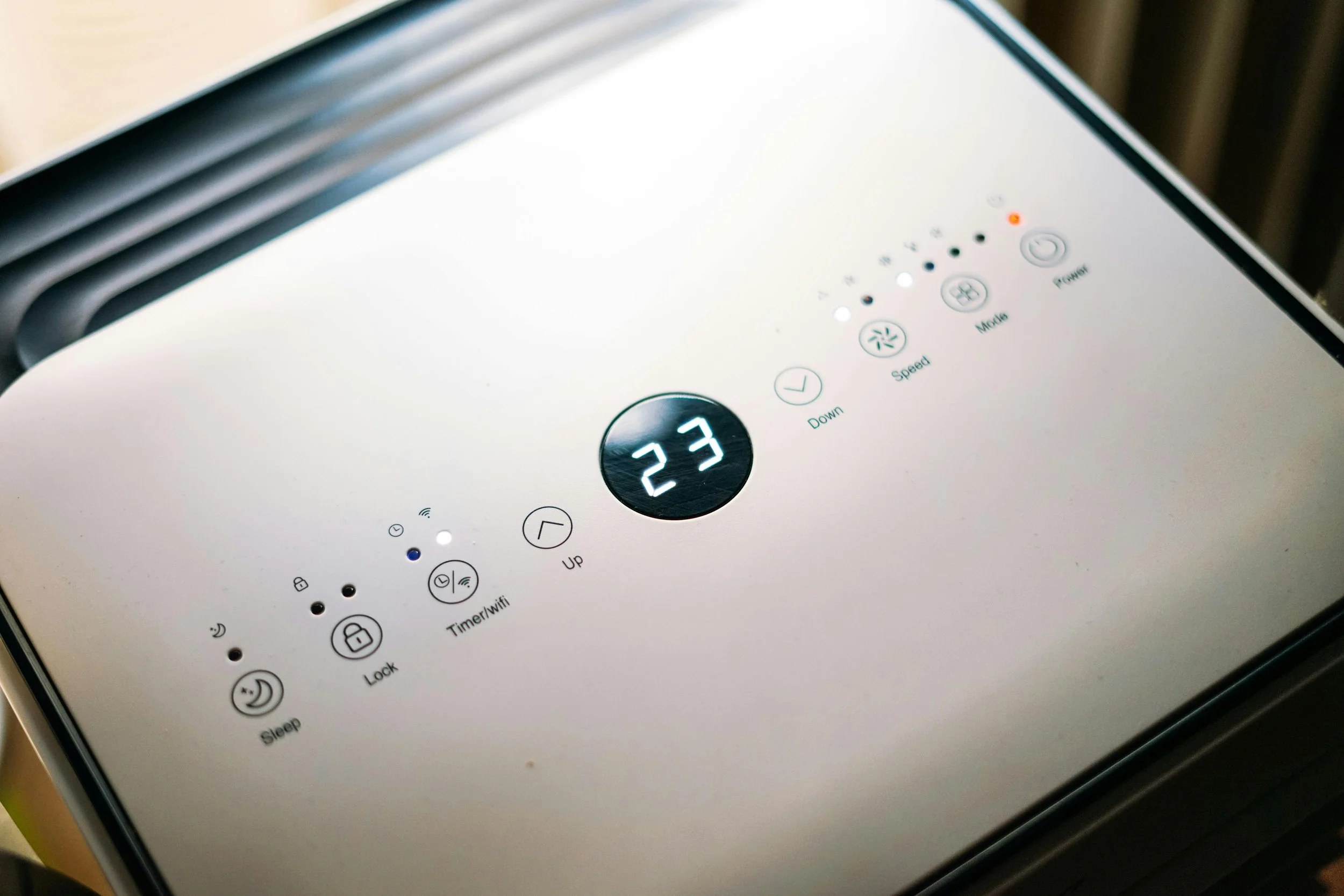
To change the HVAC mode (Heat, Cool, Auto, or Off):
Tap the mode icon (flame/snowflake) in the middle of the home screen
Select your desired mode (Cool is recommended for warmer weather)
Ready to Improve Your Home's Efficiency?
Contact Home Efficiency Experts for a thorough home assessment or to book your service.
Get A Free Home AssessmentMini-Split Systems – Switching to Air Conditioning Mode
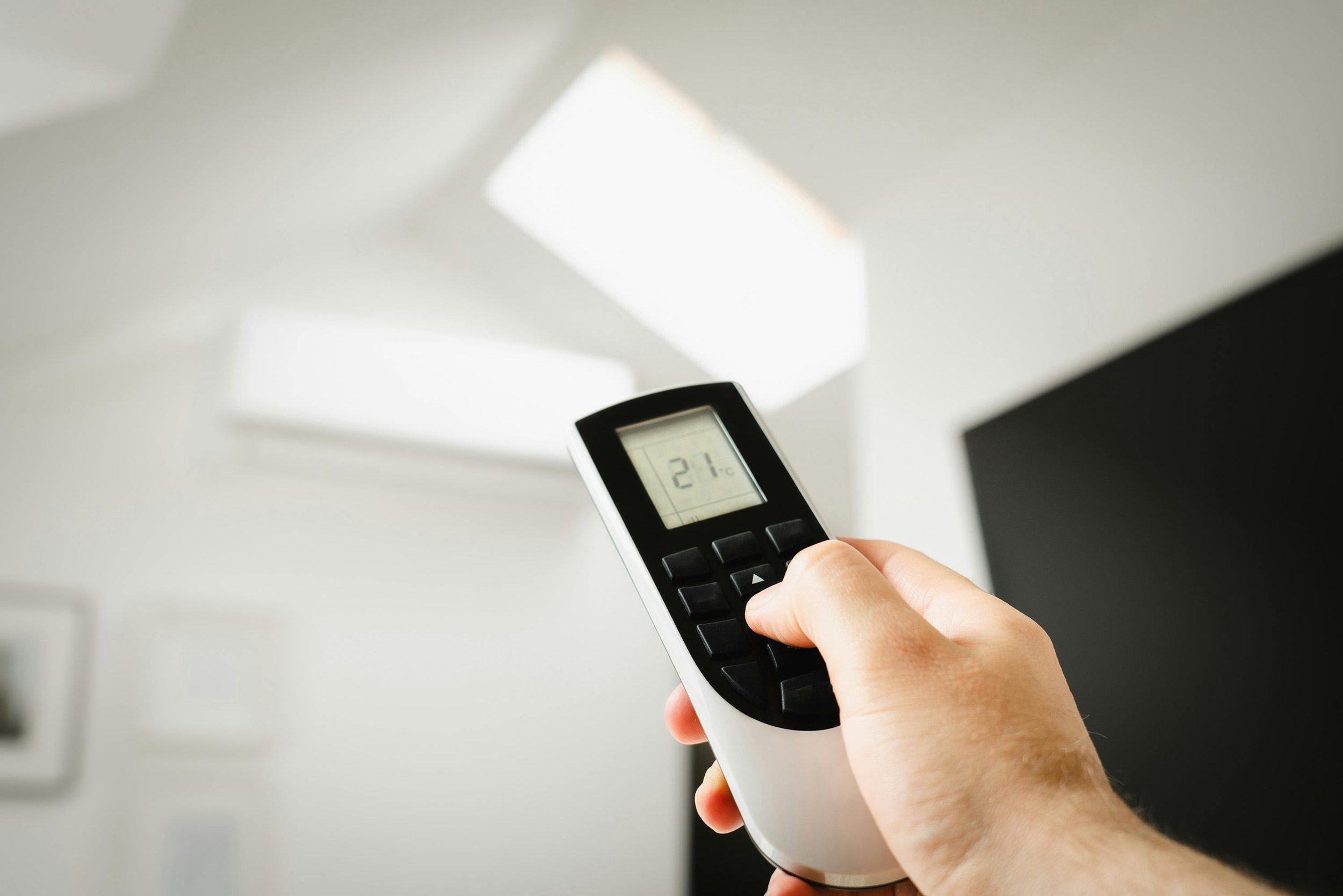
Follow these steps to ensure proper operation:
Turn On the Unit
Press the Power button on the remote controlSelect Cooling Mode
Press the Mode button until you see the snowflake icon or “COOL”Set Temperature
Adjust using the Up (△) and Down (▽) arrows
Recommended range: 72°F – 78°FSet Fan Speed (Optional)
Press Fan to cycle through Low, Medium, High, or Auto
Auto is recommended for stable temperature control
Important: Make sure all mini-split units are set to AC mode. Failure to do so may result in an error message.
Ready to Improve Your Home's Efficiency?
Contact Home Efficiency Experts for a thorough home assessment or to book your service.
Get A Free Home AssessmentHoneywell 8000 Thermostat – Mode Change Instructions
Tap the SYSTEM button on the screen
Select your mode: Heat, Cool, Off, Auto (if enabled), or Em Heat
Press DONE to confirm
Video guide: https://youtu.be/3OgcU2dO12c
Google Nest Thermostat – Switching Modes
Nest Thermostat (newer model)
Tap the touch bar to open the menu
Select Temperature Mode
Choose your desired mode and confirm
Nest Learning Thermostat (3rd gen or earlier) / Nest Thermostat E
Press the ring to open Quick View
Rotate to Mode and press
Select Heat, Cool, or desired setting
Adjust temperature if needed
Final Reminder
Before warmer weather arrives, please ensure all systems are properly switched to cooling mode to avoid performance issues and error messages.
If you need assistance, please contact your service provider.

Ready to Improve Your Home's Efficiency?
Contact Home Efficiency Experts for a thorough home assessment or to book your service.
Get A Free Home Assessment